Kling AI Video
Loading

Kling 3.0 AI Video Generator

Multi-shot narratives, element reference and 15-second takes with native audio in five languages.

What is Kling 3.0?

Kuaishou's February 2026 model, and what it merged from the two lines before it.

Kling 3.0 is a video generation model released by Kuaishou on February 6, 2026. It is not a single incremental update but a merge of two earlier lines: Kling VIDEO 2.6 was upgraded to Kling 3.0, and Kling VIDEO O1 was upgraded to Kling 3.0 Omni. Both now run on a unified multimodal training framework.

What that merge produced is a model that takes text, images, video and audio as input and returns video with synchronized sound — rather than generating picture first and attaching audio afterward.

Five things arrived with Kling 3.0 that Kling 2.6 did not have:

01

Multi-shot narratives — several camera setups inside a single generation

02

Element reference — lock a character, object or scene so it stays consistent

03

Multi-character coreference — three or more speakers correctly matched to their lines

04

Five languages plus dialects and accents — Chinese, English, Japanese, Korean, Spanish

05

15-second output with flexible duration — anywhere from 3 to 15 seconds

Kling 3.0 Features

Five upgrades, in Kuaishou's own framing.

Multi-shot: an AI director on board

Kling 3.0 reads shot coverage out of your prompt and plans camera angles and compositions itself. Shot-reverse-shot dialogue, cross-cutting and voice-over all work in a single generation, with no cutting or assembly afterward. Full detail below.

Image-to-video with locked subjects

Beyond ordinary image-to-video, Kling 3.0 accepts multiple image references — or a video reference — as Elements. The model locks the traits of characters, objects and scene, so subjects stay stable through camera movement and scene development. Full detail below.

Native audio with character referencing

In a multi-character scene you can name which character says which line, and Kling 3.0 matches them correctly. It supports Chinese, English, Japanese, Korean and Spanish, including mixed-language dialogue inside one video, plus Chinese dialects (Northeastern, Beijing, Taiwanese, Cantonese, Sichuanese) and English accents (American, British, Indian). Lip movement and expression stay coherent across the switch.

Native-level text output

Kling 3.0 reads text out of an uploaded image — signs, captions, logos — and preserves it without displacement or blurring. It also generates new text in clean layouts, which is the capability that makes e-commerce and advertising output usable rather than nearly usable.

15 seconds, flexibly

Output runs from 3 to 15 seconds in a single generation. The point is not length for its own sake: 15 seconds accommodates a complex action sequence or several plot beats in one continuous piece, instead of fragments assembled after the fact.

Kling 3.0 Multi-Shot: How It Works

Two modes — let the model plan the shots, or specify every one yourself. Multi-shot generates several camera setups inside one video instead of one continuous angle, which is what separates Kling 3.0 from Kling 2.6 most visibly.

Mode 1 — Multi-Shot on

Switch it on in the input area and the model plans scene transitions, framing and camera angles itself, reading them out of your prompt. You describe what happens; it decides how to cover it. If the scene you describe is genuinely better as a single shot, the model will still choose that — the switch enables multi-shot, it does not force it.

Mode 2 — Custom Multi-Shot

With multi-shot already enabled, clicking Custom Multi-Shot lets you set the number of shots and the duration of each. The model then follows your specification rather than planning for itself.

Writing a multi-shot prompt

Number the shots explicitly and describe each one as its own frame:

Shot 1, profile shot of a man driving a truck, cinematic handheld. Shot 2, frontal macro shot of the same man, cinematic handheld. Shot 3, macro shot of hands on the steering wheel. Shot 4, macro shot of a weathered photograph on the passenger seat.

Each shot gets a subject, a framing and a camera treatment. That structure is what the model parses — a run-on description of the same scene produces one shot, not four.

  1. When to use which mode

    Automatic multi-shot is faster and often better for dialogue, because shot-reverse-shot is a pattern the model already knows. Custom multi-shot is for when timing matters — a product reveal that has to land on a specific beat, or a sequence where you already have a storyboard.

  2. One caveat

    Multi-shot has to be enabled before Custom Multi-Shot becomes available. With the switch off, Kling 3.0 defaults to a single-shot video regardless of how you write the prompt.

  3. A working multi-shot prompt pattern

    Most people searching for a Kling 3.0 multi shot guide want the same thing: a template that reliably produces distinct shots rather than one long take. The pattern that works is Shot N, [framing] of [subject], [camera treatment] repeated per shot, with no connective prose between them. Six shots is comfortable inside 15 seconds; beyond that each shot gets too short to register.

  4. Shot count and duration together

    Custom Multi-Shot lets you set both, and they interact. Four shots across 15 seconds gives each roughly 3.75 seconds — enough for an action to read. Eight shots across the same 15 seconds gives under 2 seconds each, which works for a montage and fails for dialogue. Decide the count from the content, not from a preference for more coverage.

  5. Dialogue specifically

    Leave it on automatic. Shot-reverse-shot is a pattern the model already knows, and specifying it manually usually produces worse coverage than letting it plan. Reserve Custom Multi-Shot for sequences where timing is the point — a product reveal, a beat that has to land on a specific second.

Kling 3.0 Elements: Locking a Subject Across Shots

Bind a character once and their face — and voice — stay the same through every camera move. Create an element, bind it to a generation, and the model holds that subject steady through zooms, pans and scene changes instead of letting it drift.

  1. Binding locks picture and sound together

    This is the part most guides miss: when an element carries a bound voice tone, you should not specify the tone again in your prompt. Doing both produces conflicting instructions. Bind once, then write the dialogue plainly.

  2. Using an element

    After uploading a start frame, bind the created element through Bind Subject to Enhance Consistency. The generation then runs with element locking, and the difference against a start frame alone is visible — the subject stays recognisably the same person rather than a close approximation that shifts between shots.

  3. Where elements matter most

    Any sequence where the same character appears in more than one shot: dialogue scenes, product spokespeople, episodic content. For a single static shot they add setup time without adding much.

  4. Across a series

    Create the element once and reuse it. The value compounds: the second and third video in a series cost no extra setup, and the character stays recognisably the same person rather than a family resemblance. This is what makes episodic output practical rather than theoretical.

  5. Bond elements — the voice detail

    When you bond an element that carries a voice tone, the tone travels with it. Appearance and voice are locked together, not separately. If you want a different voice for the same face, create a second element rather than overriding the tone in the prompt.

  6. How many reference images

    Two to four. One image gives the model too little to generalise from and the subject drifts; more than four adds little and slows creation. Pick images that differ in angle rather than in expression — the model needs to understand the shape of the subject, not its moods.

What You Can Make with Kling 3.0

Six output types the model is genuinely built for.

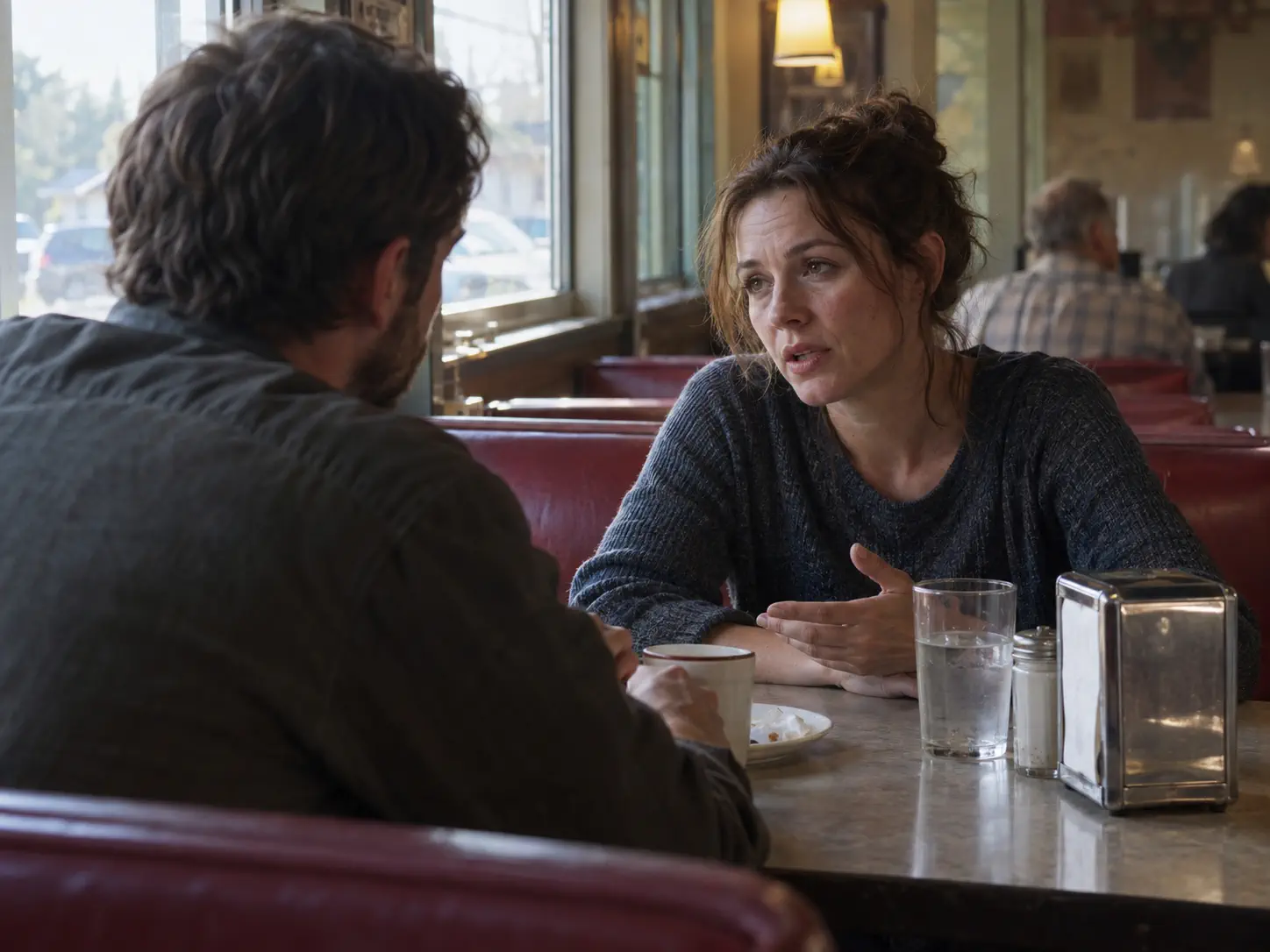
Two actors in a natural shot-reverse-shot dialogue scene inside a diner

Dialogue scenes

two or more characters, each matched to their own lines, with shot-reverse-shot coverage planned automatically

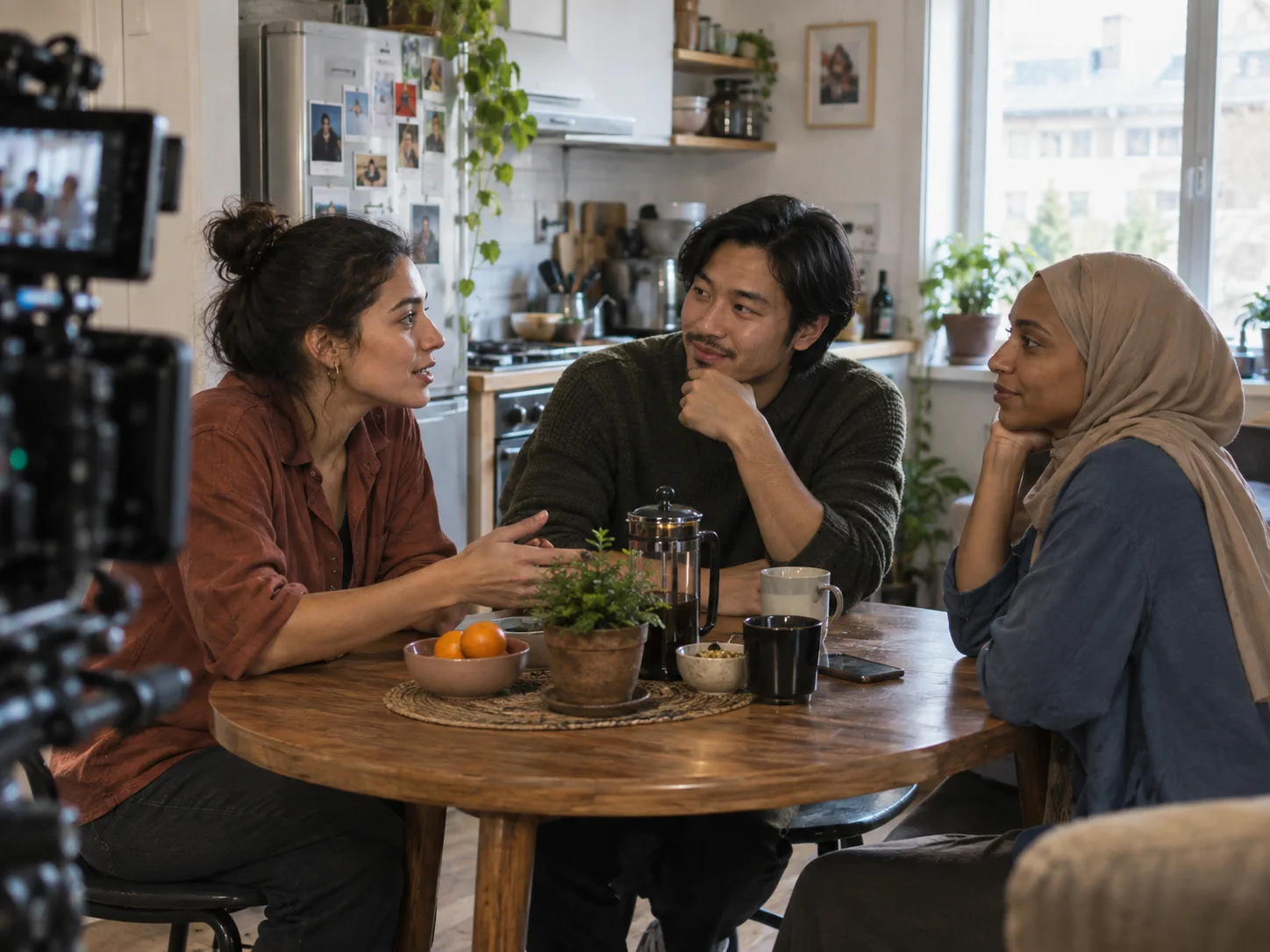
Three performers filming a multilingual conversation in an apartment kitchen

Multilingual ads

one scene, dialogue switching between Chinese, English, Japanese, Korean or Spanish, lip movement staying coherent

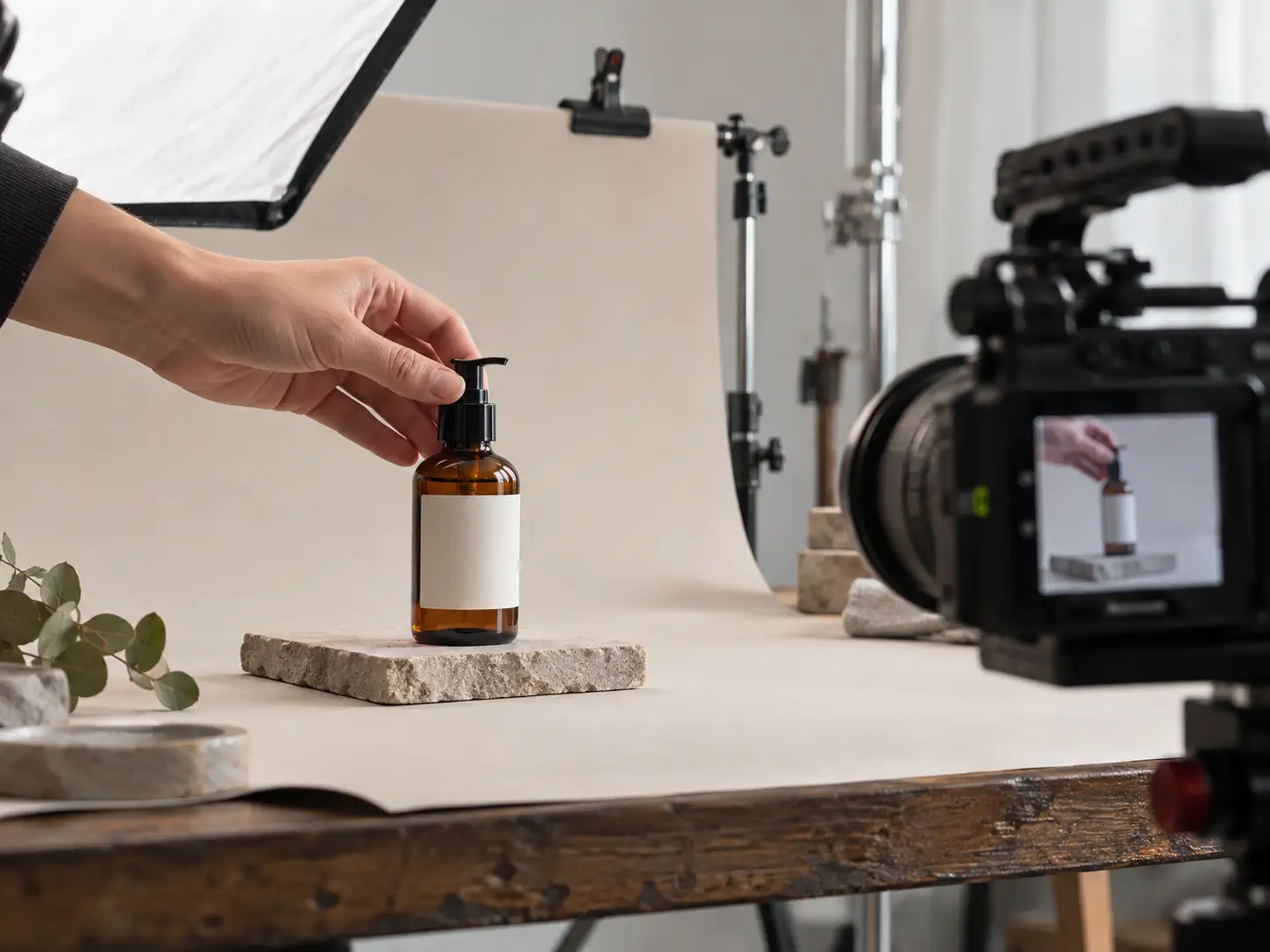
A product video shoot for an amber glass bottle in a working studio

E-commerce product video

text read out of the product image and preserved, so labels and pricing stay legible through camera movement

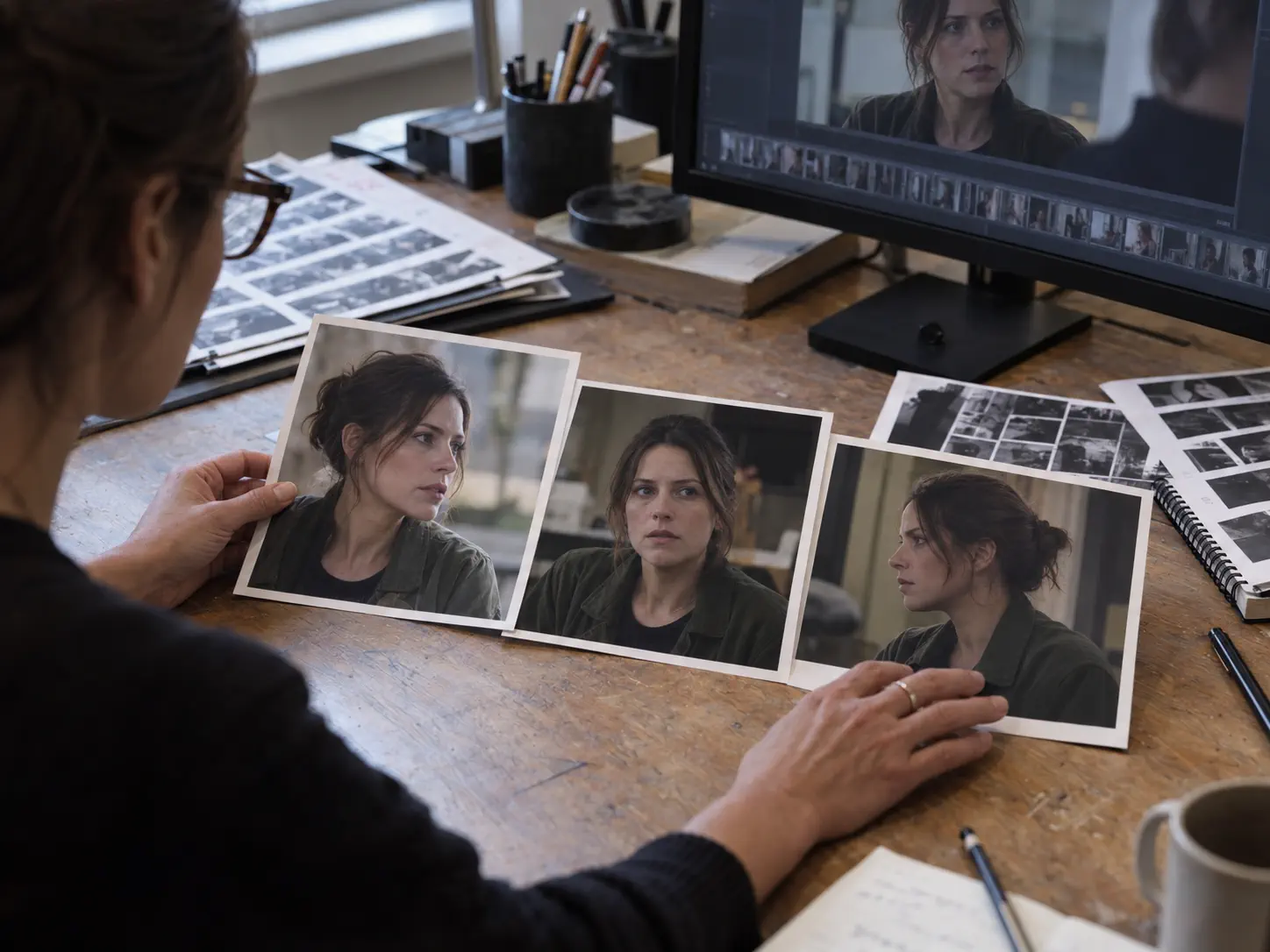
A continuity editor comparing the same character across several production stills

Character-consistent episodics

an element bound once and reused across a series of generations

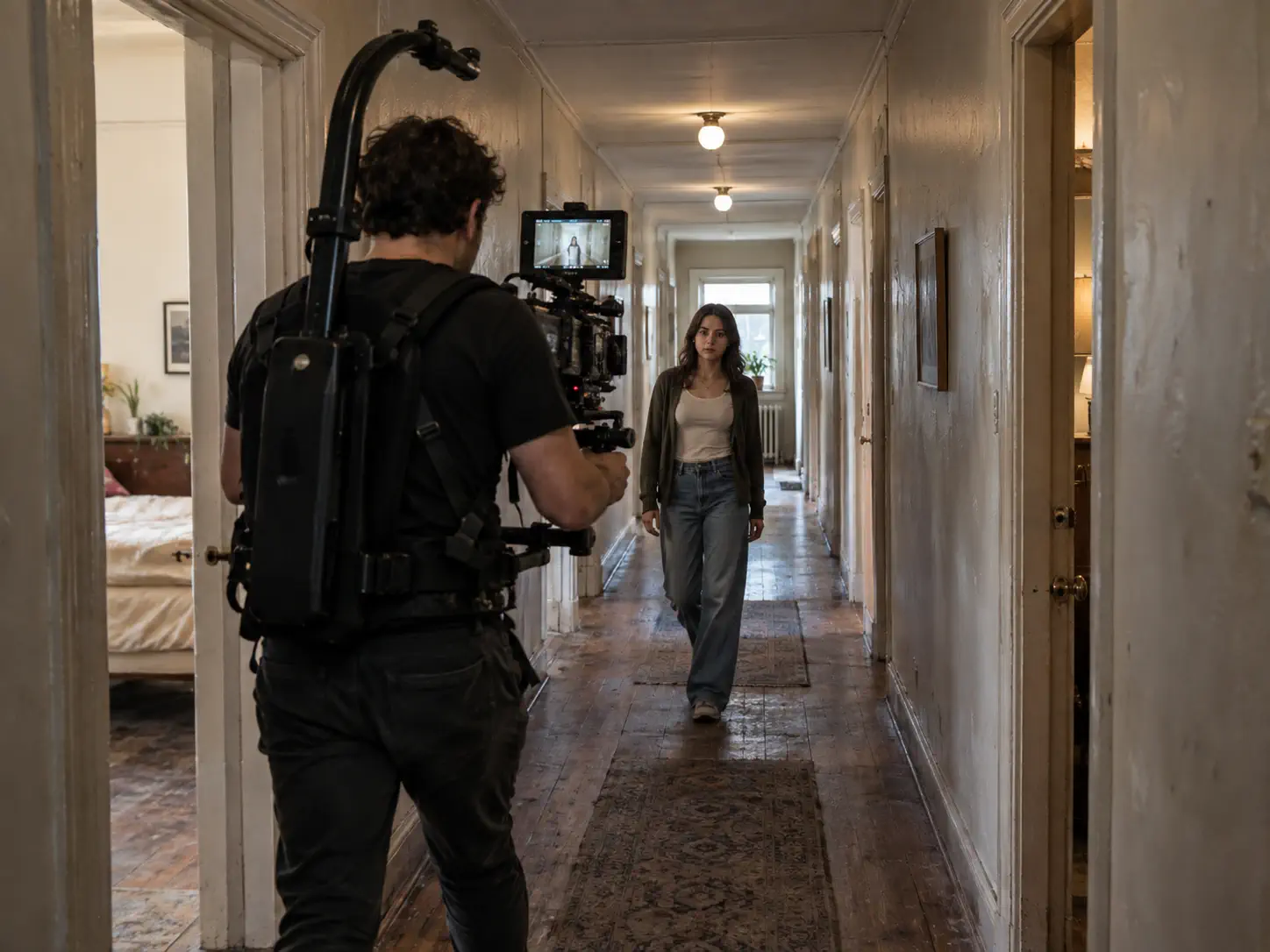
A camera operator filming one continuous moving shot through an apartment hallway

Long single takes

up to 15 seconds of continuous action without a cut

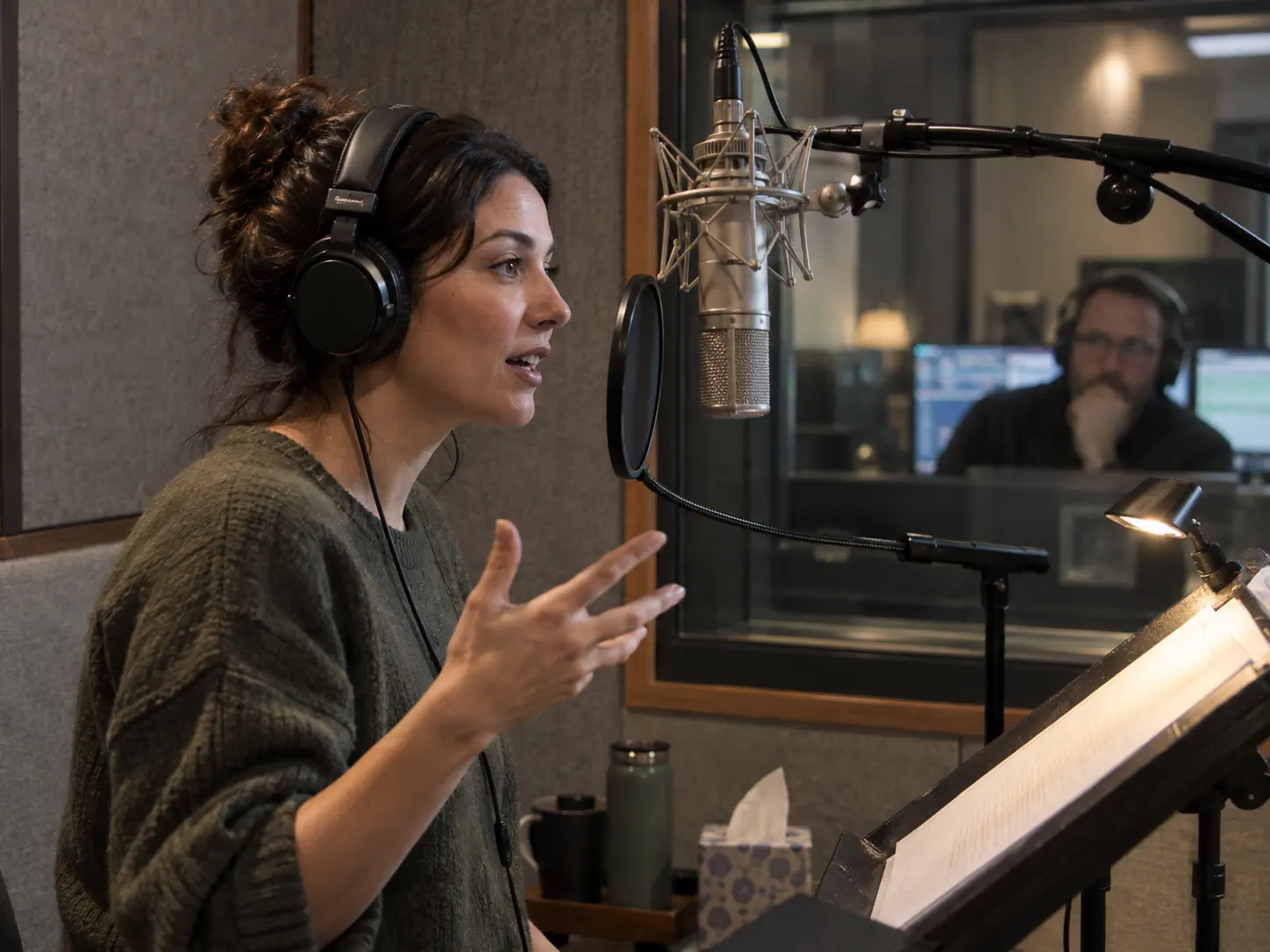
A voice performer recording expressive dialogue in a professional booth

Accent and dialect performance

Cantonese, Sichuanese, Northeastern Chinese, British or Indian English, specified in the prompt

Kling 3.0 vs Kling 2.6

Kuaishou's own capability table, plus where Kling 2.6 is still the right pick.

CapabilityKling 2.6Kling 3.0
Text-to-video✅✅
Image-to-video✅✅
Start & end frames✅✅
Native audio✅✅
Multi-shot❌✅
Start frame + element reference❌✅
Multi-character coreference (3+)❌✅
Five languages❌✅
Dialects and accents❌✅
15-second output❌✅
Flexible duration❌✅

What Kling 3.0 Is Not Good At

Four things to plan around before you build a project on it.

Anything over 15 seconds.

The ceiling is firm. A 30-second scene means two generations and a cut, or moving to Kling 4.0.

Languages outside the five supported.

Chinese, English, Japanese, Korean and Spanish are handled natively. Dialogue written in anything else gets translated into English rather than performed in the original — which is a silent failure if you are not watching for it.

Hands during detailed action.

Fingers gripping a tool, typing, or handling small objects still come out wrong often enough to plan around. Frame hands out, keep them still, or budget for re-rolls.

Exact text you cannot get wrong.

Kling 3.0 renders text well and preserves it from source images, but a specific string — a price, a phone number, a legal line — can still come back subtly altered. Composite anything that has to be exactly right in post.

How To Use Kling 3.0

Three steps, and the two switches that change the output most.

1. Write the prompt, and decide the shots.

Describe the subject, the camera and the light. If you want more than one camera setup, turn on Multi-Shot — and if the timing matters, open Custom Multi-Shot and number the shots explicitly. Dialogue goes in quotes, paired with the character who says it.

2. Bind an element if a subject has to stay consistent.

Upload 2–4 reference images or a character video, bind it through Bind Subject to Enhance Consistency, and the model holds that face, object or scene across the whole generation. If the element already carries a bound voice, leave the tone out of your prompt.

3. Set duration and generate.

Kling 3.0 runs 3 to 15 seconds. Draft short, then extend once the composition works — credits scale with output length, so a 5-second test costs a third of a 15-second take.

Kling 3.0 — Frequently Asked Questions

The questions people actually search about Kling 3.0.

What is Kling 3.0?

Kling 3.0 is Kuaishou's video generation model, released February 6, 2026. It merged two earlier lines onto a unified multimodal framework: Kling VIDEO 2.6 became Kling 3.0, and Kling VIDEO O1 became Kling 3.0 Omni. It generates 3 to 15 seconds of video from text, images, video or audio input, with sound rendered alongside the picture rather than added afterward. The capabilities that arrived with it and were absent from Kling 2.6 are multi-shot narratives, element reference, multi-character coreference across three or more speakers, five languages with dialects and accents, and flexible duration up to 15 seconds.

How does Kling 3.0 multi-shot work?

Multi-shot generates several camera setups inside one video. There are two modes. With the Multi-Shot switch on, Kling 3.0 reads shot coverage out of your prompt and plans transitions, framing and angles itself — shot-reverse-shot dialogue, cross-cutting and voice-over are patterns it already knows. With Custom Multi-Shot, available only once Multi-Shot is enabled, you set the number of shots and the duration of each, and the model follows your specification. Write custom prompts by numbering the shots and giving each its own subject, framing and camera treatment. With the switch off, Kling 3.0 produces a single shot regardless of how the prompt is written.

How do Kling 3.0 elements work?

Elements lock a subject so it stays consistent across camera movement and scene changes. You create one in two ways: upload or record a character video, from which Kling 3.0 extracts both appearance and native voice tone automatically, or upload 2–4 reference images and optionally attach audio or pick a voice tone. Once created, bind the element to a generation through Bind Subject to Enhance Consistency. An important detail: if the element already carries a bound voice tone, do not specify the tone again in your prompt — the two instructions conflict. Elements are worth the setup on any sequence where the same character appears in more than one shot.

What is the difference between Kling 3.0 and Kling 3.0 Omni?

They come from different ancestors. Kling 3.0 is the upgrade of Kling VIDEO 2.6; Kling 3.0 Omni is the upgrade of Kling VIDEO O1. Both run on the same unified framework, but Omni accepts video as an input for restyling, element replacement and in-place editing, where standard Kling 3.0 is oriented around generating from a prompt, an image or start and end frames. If your work begins with footage you already have, Omni is the variant. If it begins with a blank page or a still, standard Kling 3.0 is the simpler route.

What languages does Kling 3.0 support?

Five: Chinese, English, Japanese, Korean and Spanish. It also handles mixed-language dialogue inside a single video, switching between languages mid-scene with lip movement and expression staying coherent. Dialect and accent support is broad — Northeastern Chinese, Beijing, Taiwanese, Cantonese and Sichuanese, plus American, British and Indian English — and you specify them by tagging the speech in your prompt. One limitation worth knowing: dialogue written in a language outside those five is translated into English rather than performed in the original.

How long can a Kling 3.0 video be?

Up to 15 seconds in a single generation, with flexible duration from 3 seconds upward. That is a firm ceiling — Kling 3.0 does not extend beyond it. Fifteen seconds is enough for a complex action sequence or several plot beats in one continuous piece, which is the practical difference from Kling 2.6. If your deliverable needs more, Kling 4.0 generates up to 30 seconds in a single pass.

Can Kling 3.0 handle three or more characters talking?

Yes, and this is one of the clearest upgrades over Kling 2.6. Multi-character coreference means you pair each character with their dialogue in the prompt and the model matches speech to speaker correctly, rather than blurring who says what. Kuaishou specifically calls out three or more characters as the case where Kling 3.0 outperforms 2.6. Practically, write each character's name followed by their line and a tone direction, and let the multi-shot system handle the coverage.

Kling 3.0 vs Seedance 2.0 — which is better?

They are built around different strengths. Kling 3.0 leads on dialogue: multi-character coreference, five languages with dialects, and element binding that holds a voice as well as a face. Seedance 2.0's advantage is reference capacity for compositing-heavy work. On duration Kling 3.0 caps at 15 seconds. The honest framing is that if your scene is people talking, Kling 3.0 is the stronger tool; if it is assembling many reference assets into one shot, it is not. Benchmark both on your own brief rather than on anyone's showreel.

Is there a Kling 3.0 Omni prompt guide?

Omni takes the same prompt structure as standard Kling 3.0, so most of what you learn transfers — but two things differ in practice. First, when you feed video in, the prompt should describe the change rather than the whole scene: naming what is already visible tends to pull the model away from the source footage. Second, element replacement works better when you say which element is being replaced rather than describing the replacement alone. Kuaishou publishes an Element Library guide alongside the main model documentation, and the multi-shot and element sections of this page apply to Omni unchanged.

What is Kling 3.0 Pro?

Pro is the higher-quality tier of the same generation rather than a separate model. It produces better detail and motion stability at a higher cost per second, while Standard covers the same capabilities — multi-shot, elements, native audio, five languages — at a lower one. The practical rule is that Pro earns its cost on a shot you already know works, and wastes it on an experiment. Most people over-use Pro early and under-use it late, which is the reverse of what the tiers are for. See pricing for the per-second difference.

Can Kling 3.0 do motion control?

Yes, through Kling 3.0 Motion Control, which is a separate capability rather than a setting inside the main model. You supply a reference clip containing the performance you want and a still of your own character, and the motion — body action, camera movement and timing together — transfers across. It is the right tool for matching a trend format or reusing choreography you already like. Because motion transfer is a different problem from generation quality, a newer flagship does not replace it.

Does Kling 3.0 do on-screen text?

Yes, natively, and it works in two directions. It reads existing text out of an uploaded image — signs, captions, logos — and preserves it without displacement or blurring as the camera moves. It also generates new text in structured layouts. This is the capability that makes e-commerce and advertising output usable, because text drifting or smearing mid-shot is the failure that most often makes a generated clip unusable for commercial work. For strings that must be exactly correct, still composite in post.

Try Kling 3.0

Starter credits included. No card to try it.

Write a prompt, turn on Multi-Shot, and you have a multi-angle clip with dialogue in about two minutes. Starter credits cover several short renders — enough to see how Kling 3.0 handles your own material.