Kling 3.0 Omni AI Video Generator

Create videos from a text prompt, animate a start image, or combine image and video references with Kling 3.0 Omni. Direct the action, camera and sound in one workspace.

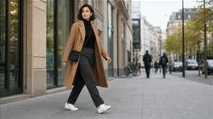
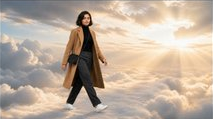
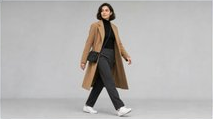
Ref_image1 · Character and wardrobe
Ref_image2 · City street
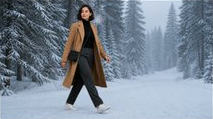
Ref_image3 · Snowy forest
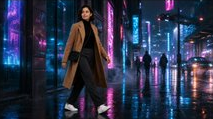
Ref_image4 · Neon megacity
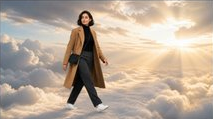
Ref_image5 · Road above the clouds
Ref_image6 · Final direct-to-camera gaze
TITLE: EVERY THIRD STEP FORMAT: 13 seconds, 16:9, 720p final output, one continuous lateral tracking shot, realistic physics, seamless environmental transformations, native environmental sound only, no music, no dialogue. REFERENCE USE: [Ref_image1] defines the woman's exact identity, face, hairstyle, age, body proportions, camel trench coat, black turtleneck, charcoal trousers, white sneakers and small black crossbody bag. [Ref_image2] defines the modern street. [Ref_image3] defines the snowy forest. [Ref_image4] defines the cyberpunk city at night. [Ref_image5] defines the infinite cloud world. [Ref_image6] defines the final direct-to-camera gaze while her body continues walking. ABSOLUTE CONTINUITY LOCK: Keep the woman from [Ref_image1] perfectly consistent for the entire video. She remains photorealistic in every world. Preserve her face, hair, wardrobe, body proportions, bag, left-to-right walking direction, calm pace, natural stride rhythm, scale and position in frame. Her feet must maintain believable contact with the current ground. She never stops, teleports, jumps, changes pose abruptly or reacts with fear. The camera maintains the same distance, height, 35 mm lens perspective and smooth lateral tracking speed. Do not use hard cuts. Each new environment must physically grow, sweep or unfold around her during an uninterrupted step. Do not split into separate shots. 0:00–0:02 — ORDINARY REALITY Start in the modern street from [Ref_image2] in soft overcast daylight. The woman walks calmly from left to right, three-quarter full-body profile, slightly left of centre. Pedestrians and traffic move naturally in the background. Her coat and hair respond subtly to the breeze. During her second step, a thin line of frost appears beneath her leading shoe and races outward along the pavement, creating the first visual anomaly before the transformation. 0:02–0:05 — SNOWY FOREST Without cutting and without interrupting her current stride, the pavement freezes and becomes packed snow. Buildings rise and transform into the tall snow-covered pine forest from [Ref_image3]. A cold gust carries powder snow across frame; her breath becomes visible. The lighting turns pale blue and wintry, but her clothes and appearance do not change. Her next two or three steps remain relaxed and physically grounded, leaving clear footprints in the snow. On the final step, a magenta reflection appears inside one footprint and spreads like liquid neon. 0:05–0:08 — CYBERPUNK NIGHT The neon reflection expands across the ground; snow crystals convert into glowing rain and the forest trunks unfold into the towering neon architecture from [Ref_image4]. Day becomes night in one continuous travelling transformation. Holographic signs, wet asphalt and passing light trails appear behind her. Pink and cyan reflections move across her unchanged coat and face. She continues at the exact same pace through realistic rain, never looking surprised. As her shoe lands again, the wet pavement cracks into a soft white glow. 0:08–0:11 — INFINITE CLOUD WORLD The glowing cracks spread rapidly. The cyberpunk street dissolves downward into the luminous cloud path from [Ref_image5] while the buildings stretch upward and vanish into an endless sky. Her foot completes the same step onto a firm translucent cloud surface with believable support. Vast clouds roll beneath her, shafts of warm sunlight break through, and tiny distant birds provide scale. The world feels enormous and surreal, but she remains calm and photorealistic, still walking left to right. 0:11–0:13 — CONNECTION Maintain the continuous tracking shot and transition naturally from the cloud state in [Ref_image5] toward the final head orientation in [Ref_image6]. While completing two final natural steps, she slowly turns only her head toward the camera, makes direct eye contact and gives the faintest knowing half-smile, as if these impossible changes are routine. Her body keeps walking forward and never turns toward the camera. End on her steady gaze with the infinite cloud horizon behind her. Hold the final expression for the last half-second. AUDIO: Begin with restrained city ambience and footsteps on pavement. Transition naturally into winter wind, soft snow crunch and breath; then neon-city rain, distant electric hum and wet footsteps; finally airy high-altitude wind and soft cloud-like resonance. Use one subtle low-frequency transition swell at each world change. No voice, no soundtrack, no captions and no on-screen text. NEGATIVE CONSTRAINTS: No cuts, montage, split screen, morphing face, duplicated woman, extra limbs, clothing changes, bag changes, age changes, hairstyle changes, camera jump, position reset, backward walking, floating before the cloud floor appears, foot sliding, broken gait, speed ramp, exaggerated facial expression, subtitles, logo or watermark.Show full prompt
References

What is Kling 3.0 Omni?

Create from text, animate an image or direct a scene with visual references.

Kling 3.0 Omni is Kuaishou’s multimodal AI video model for creating and editing video with text, image and video references. Visual inputs help guide who appears, what the scene looks like and how the action unfolds, while the prompt describes the performance and camera direction.

Use Text to Video for a written idea, Image to Video for a start frame, or Reference when several images or an existing clip should guide the result. You can also compare the Kling 3.0 generator for text and start-frame creation. Motion Control focuses on transferring a specific performance to a character image.

Image-guided video creation

Character, product and location images provide a visual starting point for a new scene. The prompt adds movement, interactions and camera direction.

Video-guided editing

Existing footage provides context for a new version of a scene. Text instructions describe the changes and identify details to preserve, such as the subject, setting or camera movement.

Kling 3.0 Omni features

Guide characters, environments and creative edits with your own visual references.

Keep the character. Change the scene.

Give the model a clear view of your subject before you describe the performance. Reference images help anchor appearance while your prompt supplies the action and framing. For a recurring character, reuse the same clean references and check the face, costume and silhouette in each result.

Build a world around your subject

Combine a character or object reference with a location image to make the intended relationship clear. Describe where the subject stands, what it touches and how the camera moves. A simple action gives you room to evaluate scale, lighting and contact before attempting a longer sequence.

Direct an edit from existing footage

Start with a video when its movement or composition is already useful. Describe the change you want, then name what should stay: the camera path, action timing, subject position or background. Keeping the request specific makes it easier to judge whether the edit followed your intention.

Explore a different visual style

Use a source clip to explore an illustrated or animated treatment. Specify the line work, materials, lighting and color palette instead of listing several competing styles. Review the result for flicker and changing details, especially where hands, hair and small objects move.

Kling 3.0 Omni specs

Text, image and reference inputs, with the output settings available in this workspace.

Model

Kling 3.0 Omni

Create from text, a start image, or image and video references with Kling O3.

References

Images + video

Use up to 7 images, or 1 video with up to 4 images.

Duration

3–15 seconds

Choose a clip length in the editor. Source footage and the operation can impose additional limits.

Resolution

720p · 1080p

Select the output resolution before generating.

Audio

Generate or retain

Generate sound from text or image inputs. When Reference includes a video, choose whether to keep its original sound.

Shot planning

Auto or custom

Plan multiple shots with a combined duration of up to 15 seconds.

Input and framing options

Framing

16:9 · 9:16 · 1:1

Choose these ratios for text and reference generation. Image-to-video follows the uploaded image’s framing.

Upload size

100 MB per file

Keep each image or video reference within the upload limit.

Editing brief

Name what changes

Describe the edit and identify the visual details that should stay.

What You Can Make with the Kling 3.0 Omni AI Video Generator

Six ways to turn your references into a new video.

Start from a product, character or location reference, then describe the action and camera movement.

An amber perfume bottle on a stone plinth beside a cinema camera in a sunlit studio

Product ads

Use product references to plan a reveal, a close-up or a new campaign setting while keeping the item recognizable.

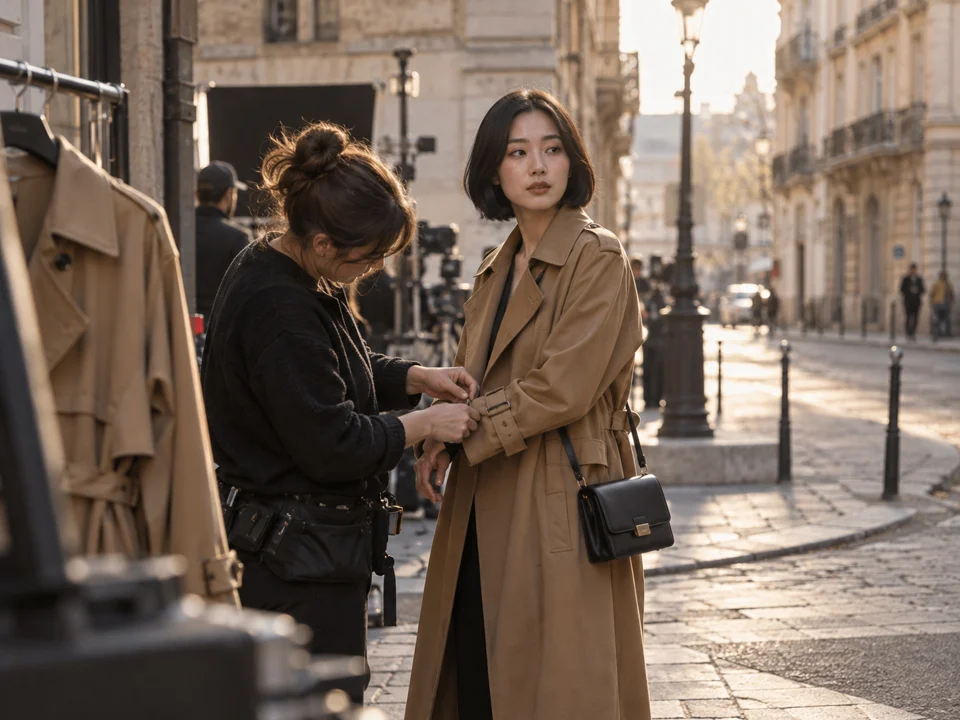
A costume artist adjusts an actress’s camel trench coat on a city film set

Character stories

Reuse character references across short scenes, with a consistent face, wardrobe and visual direction.

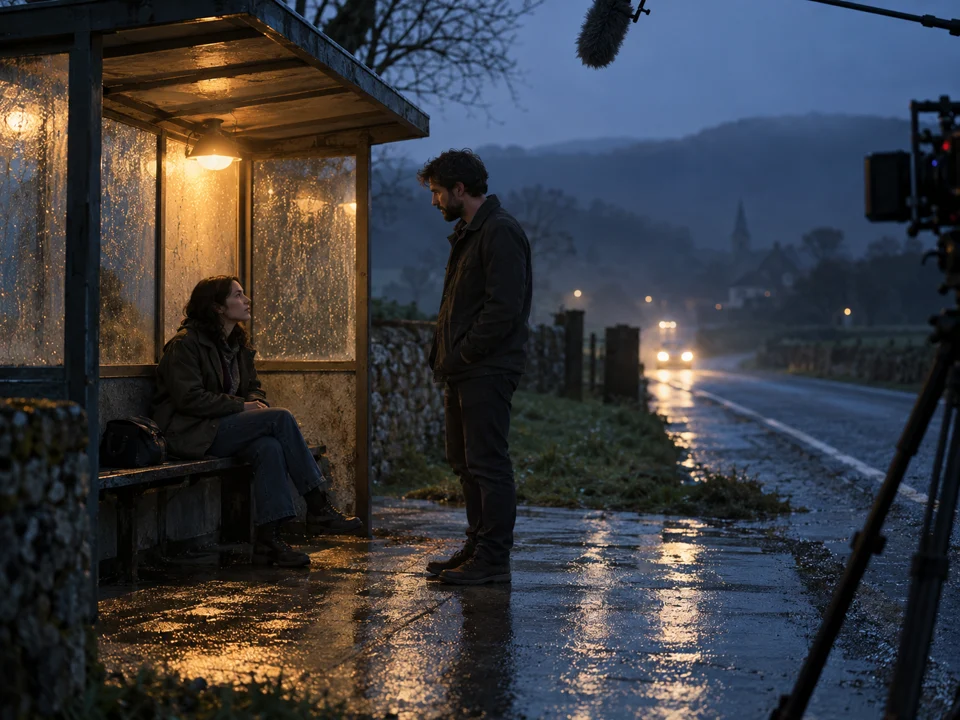
Two actors film a quiet conversation at a rain-soaked bus shelter at dusk

Short film scenes

Pair a location reference with clear action and camera direction to explore the next moment in a story.

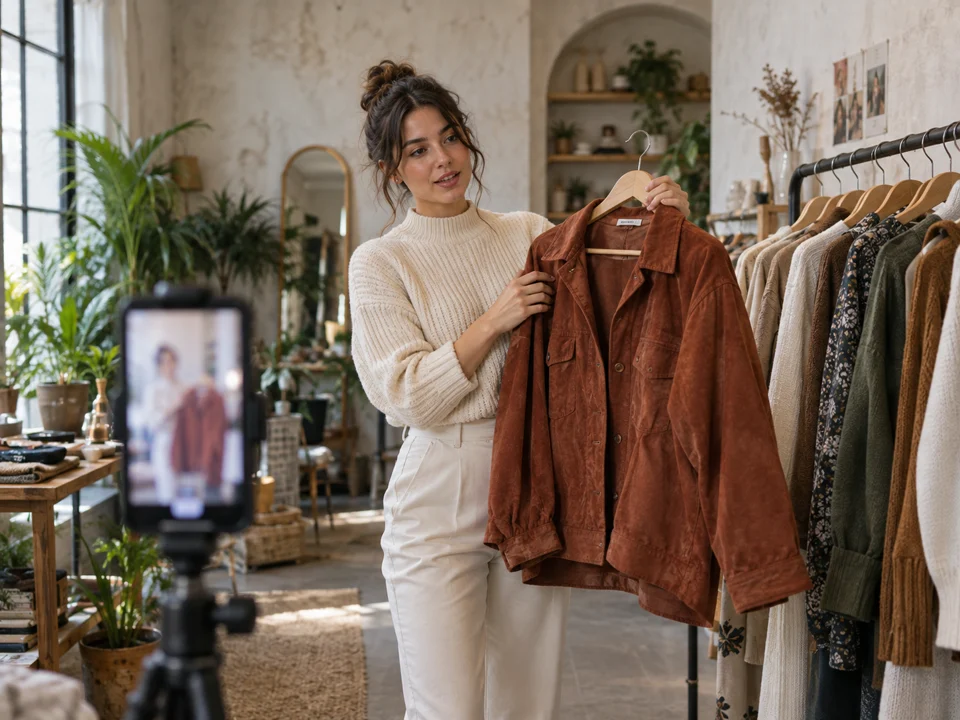
A creator presents a rust-colored jacket to a smartphone camera in a bright boutique

Social video campaigns

Create portrait-format ideas around a product, outfit or recurring subject, then adapt the framing for each channel.

A bicycle mechanic demonstrates a drivetrain repair to a camera in his workshop

Explainer videos

Break an idea into a short visual sequence with a clear subject, a simple action and carefully planned shots.

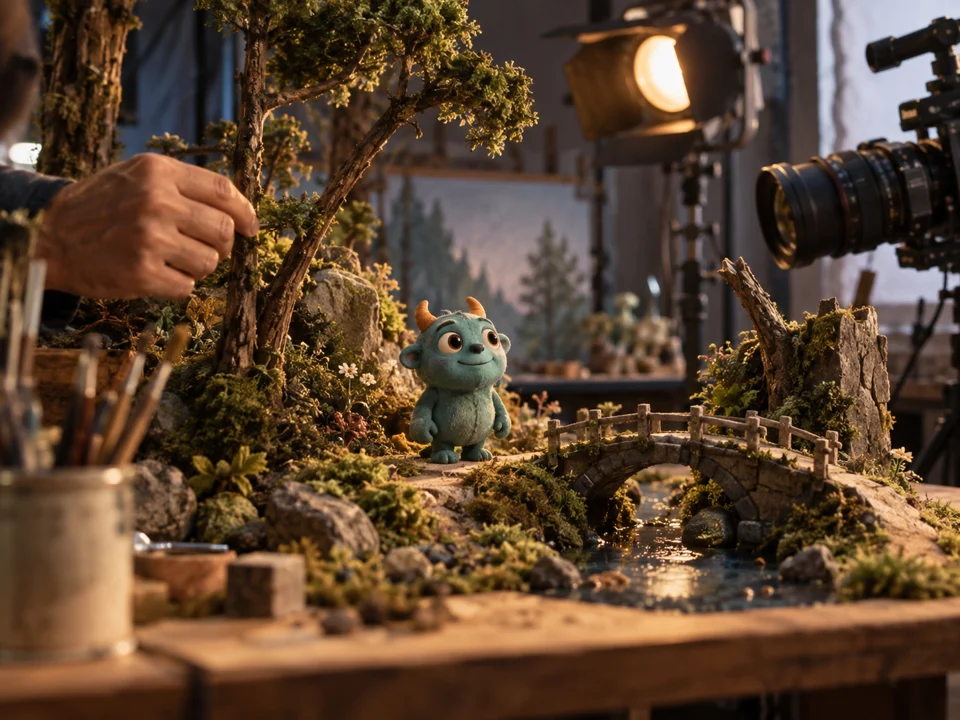
An artist arranges a teal clay creature on a detailed miniature forest set beside a camera

Animation concepts

Bring a character design and an environment reference together to explore movement, scale and scene composition.

Concept images illustrating the workflows above.

Kling 3.0 Omni use cases

Use existing visual material to give the next scene a clear starting point.

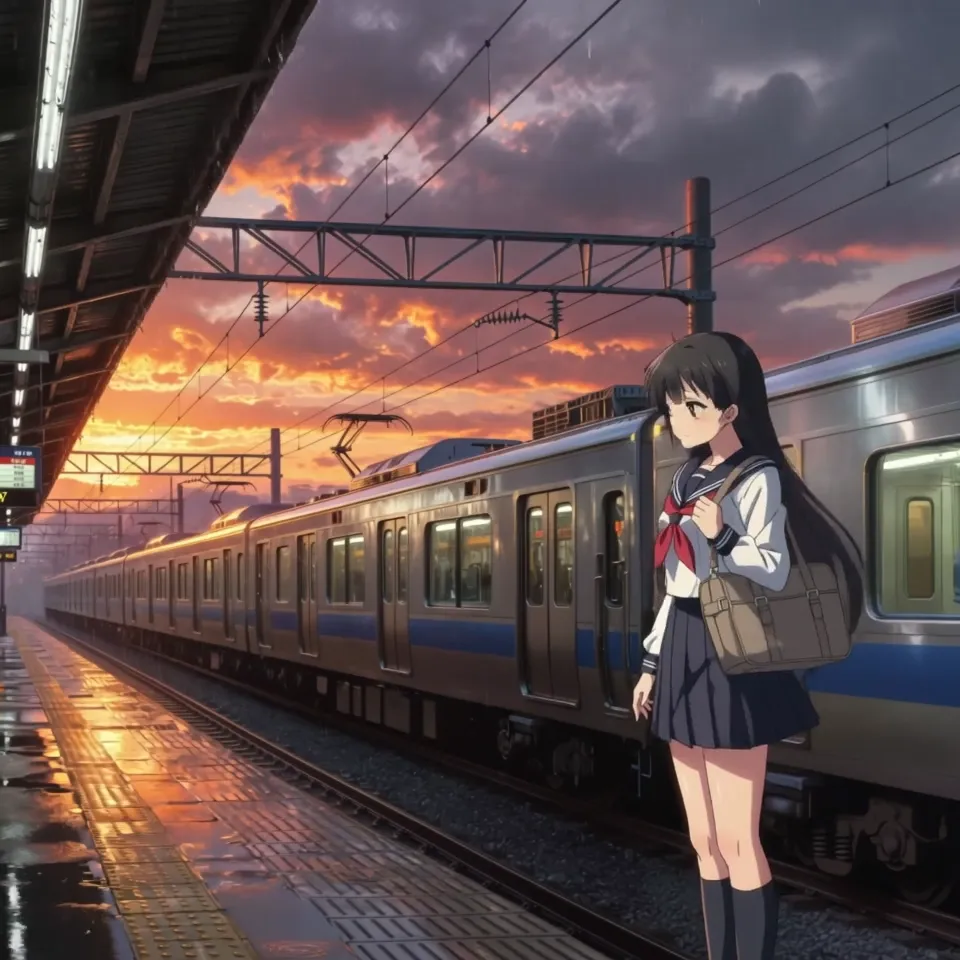
Recurring character stories

Plan short scenes around the same character references. Keep a consistent wardrobe and lighting brief when continuity matters.

An animated girl waits beside a train on a sunset railway platform

Choose the right Kling workflow

Start with the inputs you already have and the task you want to complete.

WorkflowKling 3.0 OmniKling 3.0Motion Control
Starting materialA text prompt, a start image, or image and video referencesA text prompt or start frameA character image and a driving video
Main taskCreate new clips, combine references or edit existing footageCreate a new clip from text or an imageTransfer a performance onto a character
What to describeThe scene and action; for references, what to change or preserveThe complete scene, action and cameraThe scene and framing around the reference movement
Best starting pointYou want to create from text or guide a scene with one or more visual referencesYou have a written idea or an opening imageYou want a specific dance, gesture or performance

What to check in an Omni result

Review identity, movement and sound before using a take in your project.

References guide rather than guarantee

Faces, clothing, logos and fine details can drift. Review the result at normal speed and check key frames before using it in a finished project.

Keep the first test simple

Several characters, complex contact and fast camera moves make results harder to judge. Begin with one subject and a short action, then add complexity.

Check source footage compatibility

The duration selector describes the requested output. Source clips and the selected operation may introduce further requirements or limits.

Review audio separately

Listen for timing, clarity and changes to the source track. A successful visual edit does not establish that the audio is ready to publish.

How to use Kling 3.0 Omni

Choose a creation mode, describe the scene and review the finished take.

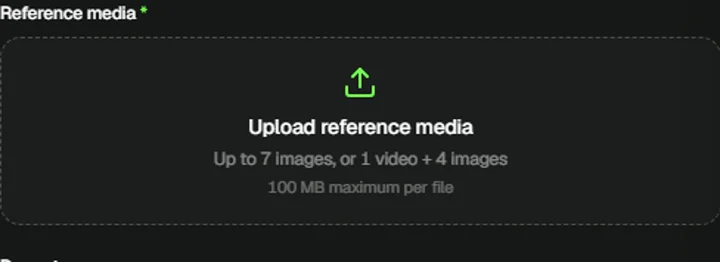
  1. Kling 3.0 Omni reference upload area

    1.Choose how to start

    Select Text to Video for a written idea, Image to Video to animate a start image, or Reference to combine up to seven images or one video with up to four images. Each uploaded file can be up to 100 MB.

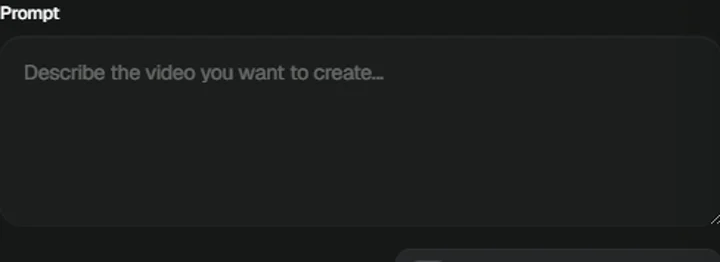
  2. Kling 3.0 Omni prompt and output settings

    2.Describe and configure

    Describe the action or edit, then choose resolution, duration and sound. Set framing for text or reference generation; image-to-video follows the start image. Keep the combined shot duration within 15 seconds.

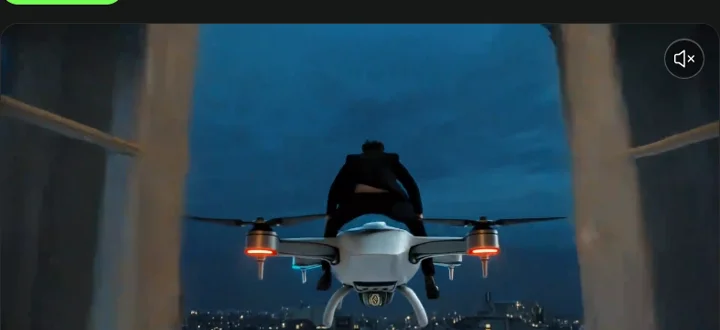
  3. Kling 3.0 Omni inspiration preview and generation workspace

    3.Generate and review

    Check the credit estimate before generating. Inspect identity, movement, contact and sound in the result, then download the video or refine one instruction for another take.

Kling 3.0 Omni FAQ

Inputs, settings and what to check before you generate.

What is Kling 3.0 Omni?

Kling 3.0 Omni is a multimodal video model focused on reference-based creation and editing. It uses visual references alongside text direction to guide subjects, scenes and shot sequences. This workspace supports Kling O3 text-to-video, image-to-video and reference-to-video generation.

How is Omni different from Kling 3.0?

Both workspaces can create clips from text or a start image. Omni also provides a reference workflow for combining character, product and scene images or using existing footage to guide an edit. Choose the mode that matches your starting material.

Which references can I upload here?

This editor accepts image and video files. You can use up to seven images, or one video plus up to four images, with a 100 MB limit per file. Use images that clearly show the subject rather than several nearly identical or conflicting views.

What resolution and duration can I select?

All three creation modes offer 720p and 1080p output with a selectable duration from 3 to 15 seconds. Choose 16:9, 9:16 or 1:1 for text and reference generation; image-to-video follows the uploaded image’s framing. Source footage and the chosen operation can impose additional limits.

Can I generate sound or keep the original audio?

Use Sound in Text to Video, Image to Video or Reference mode with image inputs to request generated audio. When Reference includes a video, choose Keep original sound instead. Listen to the finished result to check timing and clarity.

Can I plan more than one shot?

Yes. Enable Multi-Shot for automatic shot planning, or use Custom Multi-Shot to write individual shot descriptions and durations. The editor limits the combined duration to 15 seconds. Give each shot a clear action and avoid asking for too many events at once.

Does Omni guarantee that a face or product stays identical?

No. References guide the generation, but details can change as the subject turns, moves quickly or becomes obscured. Inspect faces, hands, labels and object boundaries. Simplify the action or improve the references if a detail drifts.

How much does a generation cost?

The Generate video button displays the estimated credit requirement for the current settings. Check that estimate before submitting. You can review available credit packages on the Pricing page.

Bring your next scene into focus

Create with Kling 3.0 Omni.

Start with text, an image or visual references. Describe a clear action and make your first Kling 3.0 Omni video.